October 12, 2026


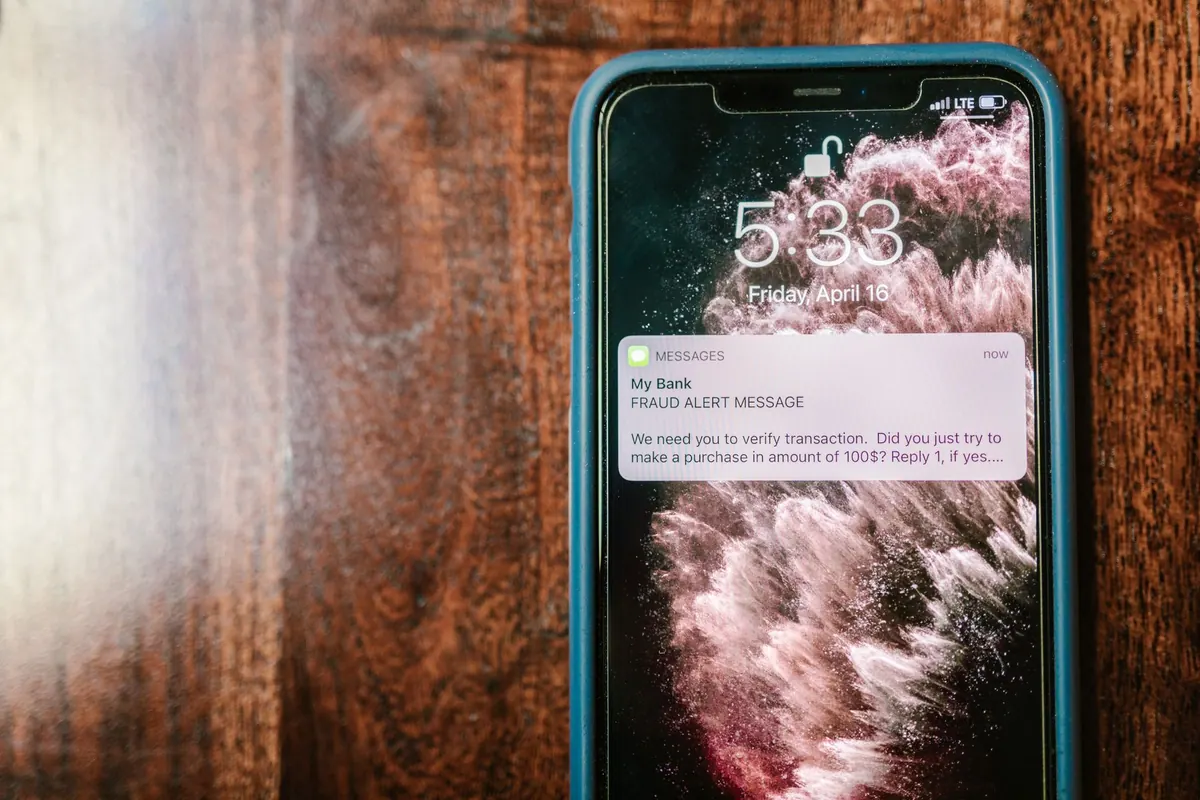
Most phishing emails are not the clumsy, misspelled scams your spam filter used to catch. They arrive looking like a routine invoice, a password expiry notice, or a message from a colleague who needs one quick favour. What gives them away is rarely one dramatic detail. It is a small mismatch, repeated in a few places at once: a sender address that does not quite match the name, a link pointing somewhere unexpected, a deadline that exists only to stop you from thinking.
You do not need security training to spot these. You need about sixty seconds and a habit of checking three things before you click. Here are the seven red flags worth knowing.
Your inbox usually shows a display name, not the full address. "IT Support" or "Microsoft Account Team" can be typed by anyone. Tap or hover over the name to reveal the actual address behind it.
Look at the domain, the part after the @ symbol, and not just the words in it:
If your bank emails you from an address that is not the one printed on the back of your card or in your banking app, treat it as hostile until proven otherwise.
Link text is just decoration. The destination is what matters, and on a computer you can hover over the link to see it in the corner of the screen without clicking. On a phone, press and hold the link, then read the preview before you let go.
Two tricks are worth memorising. First, a long address can hide its real destination: https://yourbank.com.secure-login.example.org is not your bank, it is example.org. Second, anything before an @ sign in a web address is ignored by browsers, so yourbank.com@evil-host.net takes you to evil-host.net.
When a message pushes you to log in through a link, close the email and reach the site the way you normally would: typing the address, or using a bookmark or app you already trust.
Pressure is the engine of credential theft. Real organisations rarely threaten to close your account within two hours, and they do not need to. Ask yourself who benefits from you acting fast and reading nothing.
Your mailbox is full. Verify your account within 24 hours or incoming mail will be suspended.
Watch for the softer version too: an urgent favour from a colleague, a "quiet" request not to discuss a payment with anyone, or a demand that you keep a transaction confidential. Secrecy protects the attacker, not you.
This is the line that matters most. No legitimate company or IT department will ask you to send your password by email, and no genuine support agent will ask you to read out a one-time code. Those codes exist precisely so that nobody can log in without your device.
Be equally suspicious of reverse requests: an email saying someone tried to log in and you must "confirm your identity" by entering your current password. Genuine security notices tell you what to do inside the app or website directly, not through a form in the message. If money is involved, confirm by phone using a number you already have, and check with a financial professional before sending anything.
Unexpected files deserve a second look, especially HTML files, zipped documents, and invoices that need a login to open. These formats exist to smuggle a fake sign-in page past email filters.
Then read the greeting. If a company you have paid for years writes "Dear Customer" or "Dear Sir/Madam" instead of your name, that is a hint the sender is working from a database rather than your account. Add small quality signals: a logo that looks slightly stretched, a footer contact page that does not load, an email that arrives at 3 a.m. from a colleague who never writes at night.
Do not panic, and do not stay quiet. Act in order. If you typed a password, change it immediately on the real site, then change it anywhere you reused it, because credential stuffing is common. Sign out of active sessions if the service allows it. Turn on two-factor authentication, ideally with an authenticator app rather than text messages.
If you entered payment details, call your bank or card provider using the number on their website or your statement and explain what happened. If you opened an attachment, run a full malware scan and disconnect from the network if you notice unusual behaviour. Report the message to your IT team or email provider so it can be blocked for others, then delete it.
Finally, give yourself some credit for checking. The skill here is not memorising a list, it is slowing down for the sixty seconds when a message is pushing you to rush.
Photo: RDNE Stock project / Pexels
Your guide to spyware removal and online security.
Copyright © 2026 Spyware Spot. All rights reserved. Spyware Spot.